NAVIGATION / MULTI INFO DISPLAY NAVIGATION SYSTEM(Production Date from 2023/04) My Settings cannot be Used on the Multi-display
CAUTION / NOTICE / HINT
- NOTICE:
-
Depending on the parts that are replaced during vehicle inspection or maintenance, performing initialization, registration or calibration may be needed.
PROCEDURE
Check that the my settings system operates normally.
- Result:
Result Proceed to Operates normally A Not operates normally B
A
B
Confirm problem symptoms
Confirm the problem symptoms of the my settings function, and proceed to the respective link.
- Result:
Problem symptoms Proceed to The settings screen does not display the vehicle name or user name A My settings cannot be created, stored, deleted or uploaded B A value the my settings function cannot be changed A value of the my settings function changes by itself The data of the my settings function cannot be transferred to another vehicle The individual cannot be identified C
A
B
C
Check that the telematics system operates normally.
- Result:
Result Proceed to Malfunction not occurs A Malfunction occurs B
A
B
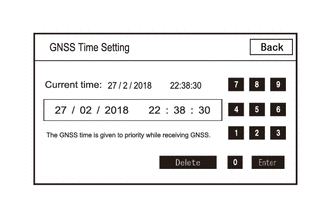
Select "Function Check/Setting" from the "Service Menu" screen.
Select "System Sensors Check" from the "Function Check/Setting I" screen.
Select "Time Setting" from the "System Sensors Check" screen.
Check "GNSS Time Setting" screen and confirm that "Current time" is set correctly.
- Result:
Result Proceed to "Current time" is correct A "Current time" is not correct B
A
B
Check that the customers smartphone and applications meet the following conditions:
- NOTICE:
-
If it is necessary to change smartphone settings, update software, etc., make sure to obtain the permission of the customer first.
- ·
The smartphone is turned on
·The smartphone is ready to communicate
·The operation of the smartphone has been confirmed
·The time displayed by the smartphone is correct
·Applications are installed
·Each application is the latest version
Check for malfunctions and confirm that the device operates correctly.
- Result:
Result Proceed to Malfunction does not occur A Malfunction occurs B
A
B
Check that the same user ID is not being used for other vehicles.
- NOTICE:
-
If it is necessary to confirm the settings of the smartphone, make sure to obtain the permission of the customer first.
- HINT:
-
By confirming the vehicle registered to each application and then contacting the call center, it can be confirmed whether the same user ID is used for other vehicles.
Check for malfunctions and confirm that the device operates correctly.
- Result:
Result Proceed to Malfunction does not occur A Malfunction occurs B
A
B
Check that operation is normal from a dealer account in a different vehicle.
- Result:
Result Proceed to Is interrupted or down for maintenance A Is not interrupted or down for maintenance B
A
B
Check if the application is signed out.
- Result:
Result Proceed to The application is signed out A The application is not signed out B
A
B
Check that the customers smartphone and applications meet the following conditions:
- NOTICE:
-
If it is necessary to change smartphone settings, update software, etc., make sure to obtain the permission of the customer first.
The smartphone is turned on
The smartphone is ready to communicate
Check that the "Bluetooth" setting of the smartphone is set to on
The operation of the smartphone has been confirmed
The time displayed by the smartphone is correct
Applications are installed
Each application is the latest version
The application is started and the user is signed in
The smartphone is displayed on "Bluetooth devices" on the my settings screen of the in-vehicle device.
Check for malfunctions and confirm that the device operates correctly.
- Result:
Result Proceed to Malfunction does not occur A Malfunction occurs B
A
B