PARK ASSIST / MONITORING PANORAMIC VIEW MONITOR SYSTEM DIAGNOSIS SYSTEM
PANORAMIC VIEW MONITOR DIAGNOSIS SYSTEM
For panoramic view monitor system diagnosis, signals received by the parking assist ECU can be checked, and the panoramic view monitor system can be calibrated, adjusted and checked using the radio and display receiver assembly*1 or navigation receiver assembly*2.
*1: w/ Audio and Visual system
*2: w/ Navigation system
- NOTICE:
-
Depending on the parts that are replaced or operations that are performed during vehicle inspection or maintenance, calibration of other systems as well as the panoramic view monitor system may be needed.
- HINT:
-
The displayed screens and items may differ depending on vehicle specifications.
DIAGNOSIS SCREEN TRANSITION (VIEW ADJUSTMENT)
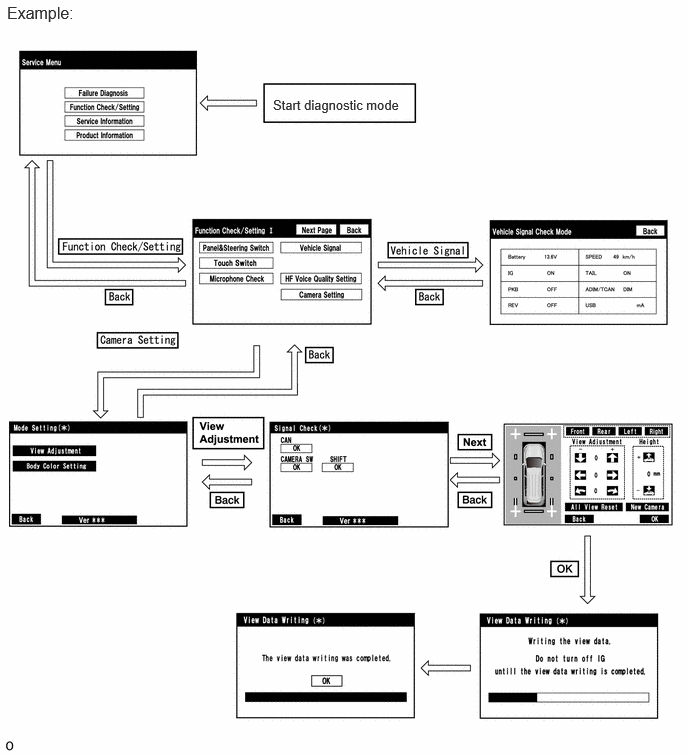
DIAGNOSIS SCREEN TRANSITION (BODY COLOR SETTING)
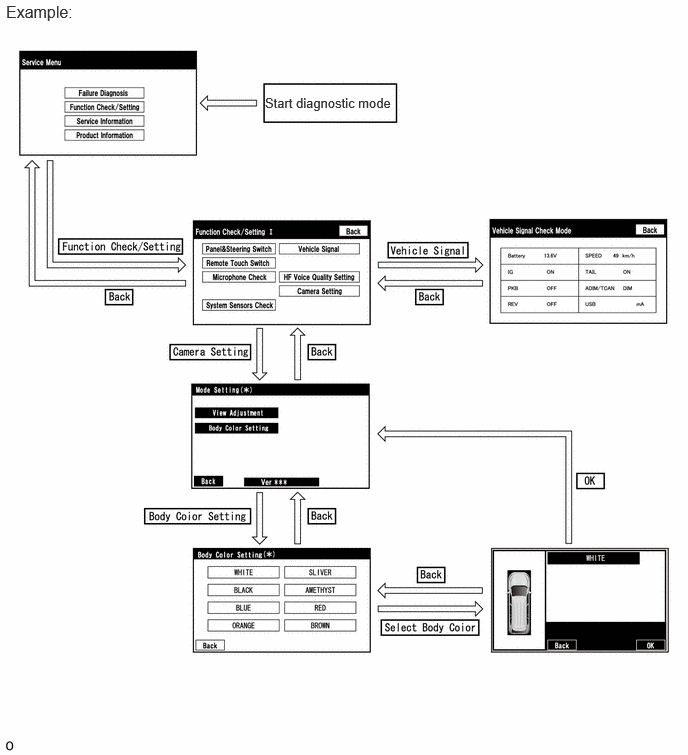
DIAGNOSTIC MODE
System check (check using system check mode screen)
Finish diagnostic mode.
SIGNAL CHECK (PARKING ASSIST ECU INPUT SIGNAL)
Start diagnostic mode.
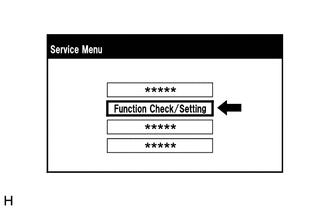
Select "Function Check/Setting" on the Service Menu screen to display the Function Check/Setting I screen.
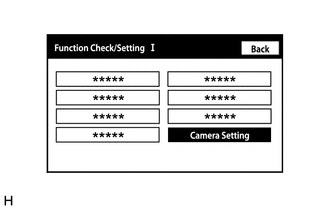
Select "Camera Setting" on the Function Check/Setting I screen.
- NOTICE:
-
If the "Camera Setting" selection screen is not displayed, turn the ignition switch off and enter the diagnosis screen after turning the ignition switch to ON once again.
- HINT:
-
After "Camera Setting" is selected, the screen transitions differ depending on whether initialization of the parking assist ECU was performed after parking assist ECU replacement.
Parking Assist ECU Initialization Screen Transition Not performed Signal Check(*) screen Performed Mode Setting(*) screen
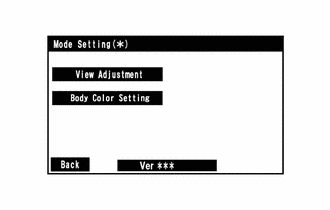
When the screen changes to the Mode Setting(*) screen, select "View Adjustment" to display the Signal Check(*) screen.
- HINT:
-
To select a grayed out item, select and hold the item for 2 seconds or more.
Signal check
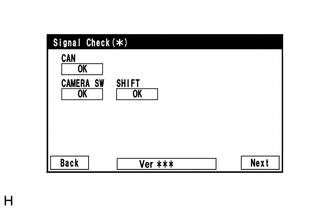
On the Signal Check(*) screen, it is possible to inspect the state of signals sent to the parking assist ECU and check the settings.
- HINT:
- ·
When "CHK" (red) is displayed, perform inspections based on the result of the following inspections.
·If performing the adjustment after proceeding to the next screen, confirm that all items display "OK" (blue) before selecting "Next".
| Item | Inspection Detail | Note |
|---|---|---|
| CAN | Speed signal input | When "CHK" (red) is displayed, selecting "Next" will not change to the next screen. |
| CAMERA SW | Panoramic view monitor switch signal input | |
| SHIFT | Reverse signal input |
CAN inspection
Check that "OK" (blue) is displayed for "CAN" and select "OK".
- HINT:
-
If "CHK" (red) is displayed for "CAN", check for DTCs and perform troubleshooting based on the output DTCs.
CAMERA SW inspection
Check that "OK" (blue) is displayed for "CAMERA SW" and select "OK".
- HINT:
-
If "CHK" (red) remains displayed or the "CAMERA SW" inspection result is not normal, perform troubleshooting according to the Problem Symptoms Table ("CHK" message(s) are displayed on the Signal Check(*) screen).
SHIFT inspection
Check that "OK" (blue) is displayed for "SHIFT" and select "OK".
- HINT:
-
If "CHK" (red) remains displayed or the "SHIFT" inspection result is not normal, perform troubleshooting according to the Problem Symptoms Table ("CHK" message(s) are displayed on the Signal Check(*) screen).
Finish diagnostic mode.
BODY COLOR SETTING
- HINT:
- ·
This function is used for only customers who request it.
·The color of the vehicle icon displayed on the moving view screen or the panoramic view screen can be changed from the diagnosis screen.
Start diagnostic mode.
Select "Function Check/Setting" on the "Service Menu" screen.
Select "Camera Setting" on the "Function Check/Setting I" screen.
Select "Body Color Setting" on the "Mode Setting" screen to display the "Body Color Setting" screen.
Body color setting
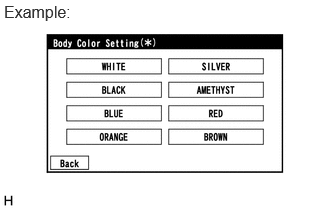
Select the color to change, and display the result confirm screen.
- HINT:
-
"White" is initialized.
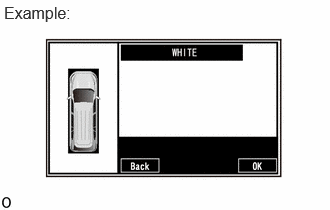
Select "OK" on the result confirm screen, and display the mode setting screen.
- NOTICE:
-
Changing the color of the icon may make the icon border hard to see on the moving view screen or panoramic view screen.
- HINT:
- ·
The body color setting screen does not display the actual body color.
·To change the body color setting again, select "Back" and select it again.
·The setting is memorized when the mode setting screen is displayed.
Finish diagnostic mode.
CALIBRATION WHEN SERVICING VEHICLE
- NOTICE:
-
Depending on the parts that are replaced or operations that are performed during vehicle inspection or maintenance, calibration of other systems as well as the panoramic view monitor system may be needed.